
These days, businesses should not have to choose between having a great wireless network and having...
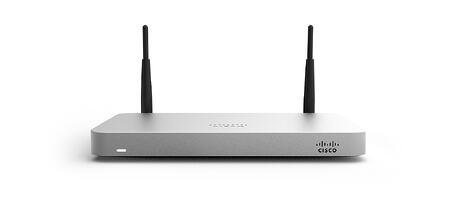
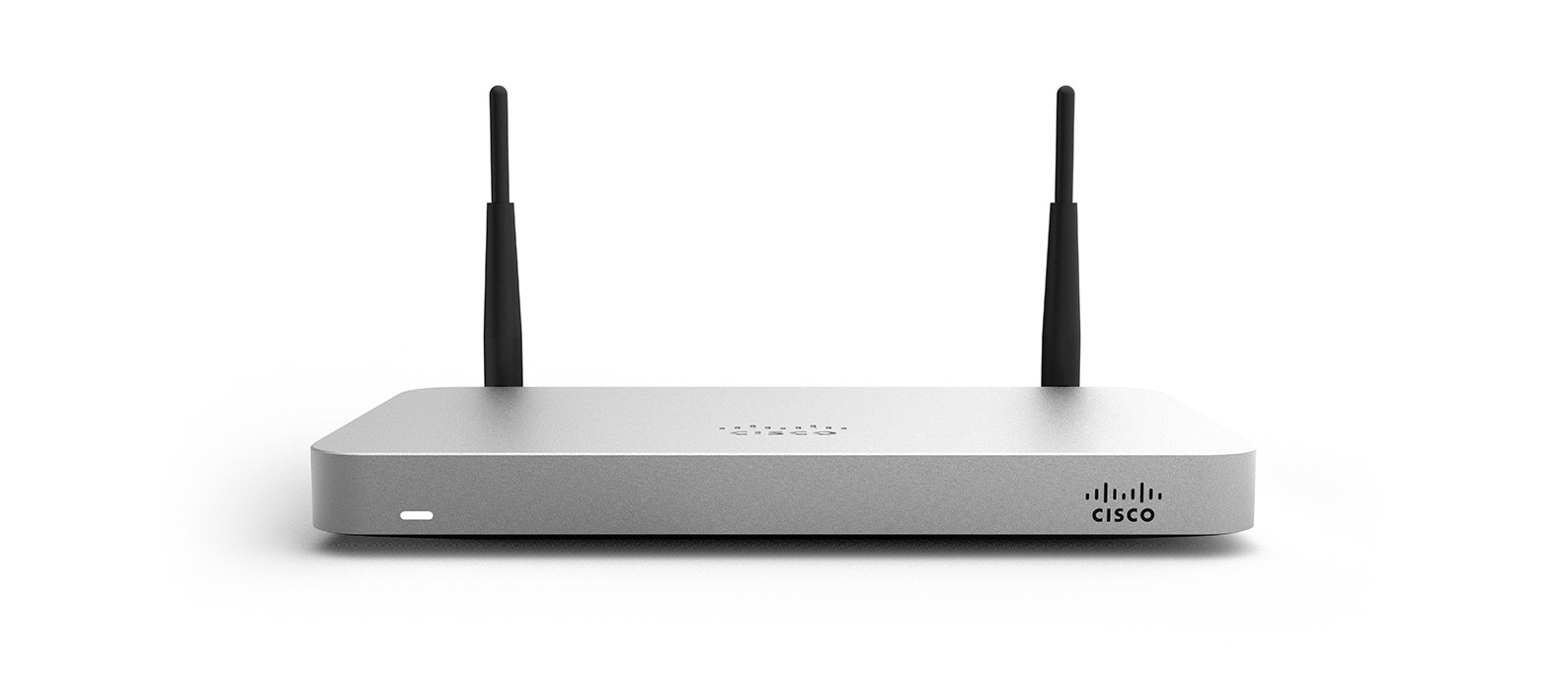 Hello, this is Brandon at Team One Solutions. Today I'm going to show you how to create a wireless guest VLAN on your Z1 Teleworker Gateway. This also works on the MX60W security appliance, your Cisco Meraki security appliance.I'll get started right away. You'll need to obviously be logged into your dashboard and connected to your Z1 network. Mine is called TOS Lab. The first thing we are going to need to do is enable VLANs if you don't already have them enabled. So we are going to enable VLAN, add a local VLAN, I'm going to go ahead and call it Guests. I'm going to make the subnet 192.168.99.0/24. I'm going to make my MX IP .99.1. VLAN ID, I'll use 99 and I don't need to set a group policy or apply to the VPN. That's out of the scope of this video but you may choose otherwise. I will update that and I will go ahead and save that page.
The next thing we are going to do is go ahead and go to our wireless settings, and we are going to tag the SSID with the appropriate VLAN. In this example I've already got my home network set up with WPA2 security and my password. I'm going to create a second SSID by enabling it. I'm going to call it Guests. I'm going to go ahead and tag it to VLAN 99, and I'm going to leave the security as open.
So now I've got an open SSID that anybody could connect to and browse the internet. The problem is they could also access my home network, which I don't want them to. That's where Configure Firewall comes into play. I'm going to go ahead and create a couple of quick rules here to deny traffic in either direction, to and from my network to the guest network and vice versa. So Deny, Any, 10.9.10.0/24, 192.168.99.0/24, and the comment will just be Guests. I'll go ahead and make the inverse rule as well to make sure that no traffic can go in either direction, like so, and save.
Now we're done. Now one bonus I'm going to show you is if you're a Facebook user and have a Facebook page, and you'd like to enable Facebook authentication and keep track of users and have them check in on your page to access your Guest wireless, you can easily do that. We'll go to Access Control, and we'll select VLAN 99, and we'll select Sign On, Facebook login. Notice up here in pink, click here, to finish configuring. You'll get a new tab. You'll need to log into Facebook and select the page that you administer. Our Team One Solutions site, a couple other options here I won't go into detail. We'll save the settings, settings have been saved.
Now I can go back to my access control and I can save the changes here. I can look at my splash page, Guest 99, and confirm that it's configured through Facebook.
So there you go. Thanks for watching. This was Brandon at Team One Solutions. Have a nice day.
Bonus Content
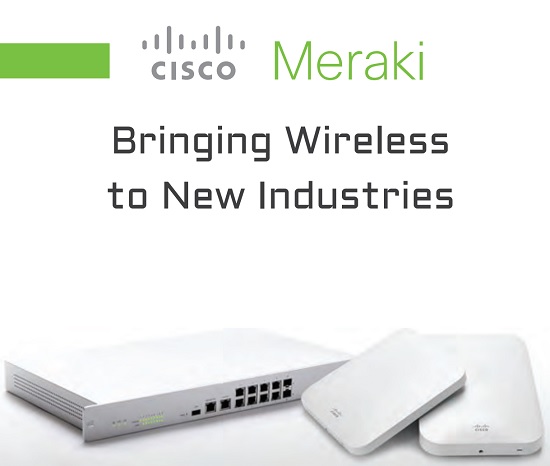
Download the Team One Solutions' Bringing Wireless to New Industrries guide.